


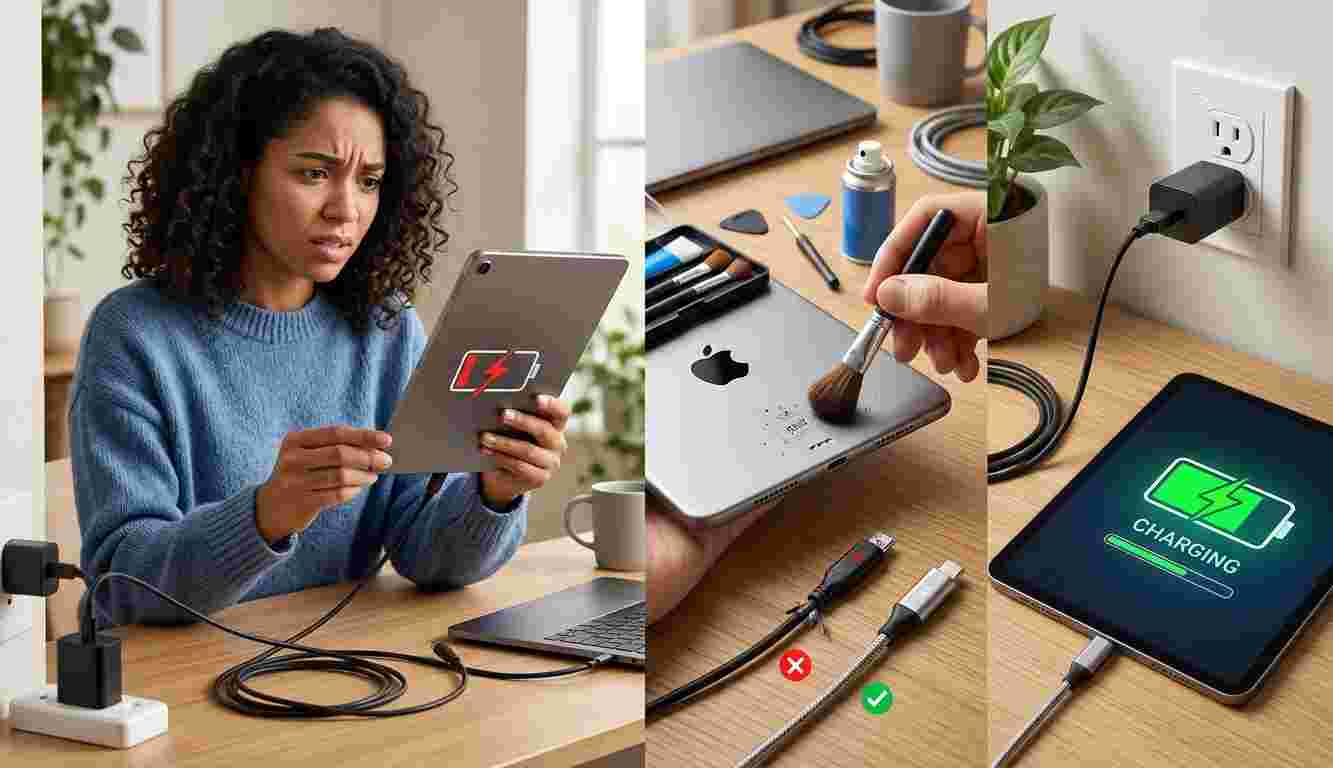
A tablet that charges slowly, refuses to charge, or keeps disconnecting from its power source can quickly become frustrating. These problems may result from a damaged charging cable, a faulty adapter, dirt inside the charging port, software issues, or battery wear. Knowing how to identify the cause can help you find the right solution and avoid further damage. Mobile Device Techs, mobiledevicetechs.com, and Mobile Device Techs Douglasville are helpful resources for learning more about mobile device care and repair.
Table of Contents
-
Common Tablet Charging Problems
-
How to Fix Tablet Charging Issues
-
Signs Your Tablet Needs Professional Repair
-
Frequently Asked Questions
-
Conclusion
1. Common Tablet Charging Problems
Tablets can experience different charging issues depending on their age, condition, and usage habits. Here are some common problems to watch for.
Tablet Is Not Charging at All
If your tablet does not respond when connected to a charger, the issue could be a damaged cable, faulty power adapter, defective outlet, or damaged charging port. A battery problem may also prevent the device from receiving or holding power.
Tablet Charges Very Slowly
Slow charging can happen when you use an incompatible or low-power adapter. Running demanding applications while charging, using a damaged cable, or having too many background processes active may also affect charging speed.
Charging Cable Keeps Disconnecting
If the charging connection repeatedly starts and stops, the cable connector or tablet charging port may be loose or damaged. Moving the cable to maintain a connection can be a warning sign of a hardware issue.
Tablet Shows Charging but Battery Percentage Does Not Increase
Sometimes a tablet displays the charging symbol without gaining battery percentage. This may happen because the charger cannot supply enough power, the battery is worn out, or a software process is consuming power faster than the device receives it.
Tablet Overheats While Charging
Some warmth during charging is normal, but excessive heat can indicate a problem with the charger, battery, charging port, or internal components. Stop charging if the tablet becomes unusually hot.
2. How to Fix Tablet Charging Issues
Before arranging a repair, try these troubleshooting steps carefully.
Check the Charging Cable and Adapter
Inspect your cable for fraying, bent connectors, or visible damage. Try a compatible, manufacturer-recommended or certified adapter and cable. Avoid using damaged charging accessories.
Test a Different Power Outlet
Connect your charger to another working wall outlet. If possible, test it with a compatible device to determine whether the adapter or outlet is causing the issue.
Inspect the Charging Port
Look for visible dust or debris inside the tablet's charging port. Do not insert metal objects, sharp tools, or liquids into the port. If debris is difficult to remove safely, seek professional assistance.
Restart Your Tablet
Temporary software glitches can sometimes interfere with charging. Restart your tablet and connect it to the charger again to see whether the issue improves.
Close Unnecessary Applications
Streaming, gaming, and other demanding applications can consume significant power. Close unused apps and allow the tablet to charge while its screen is off.
Check for Software Updates
Outdated software may sometimes cause battery or charging-related problems. Check your tablet's settings for available updates and install them using a reliable connection.
3. Signs Your Tablet Needs Professional Repair
If basic troubleshooting does not solve the issue, the problem may involve internal hardware. Consider professional assessment when:
-
The tablet does not charge with multiple compatible chargers.
-
The charging port feels loose or the cable will not stay connected.
-
The battery drains quickly even after a full charge.
-
The tablet shuts down unexpectedly.
-
The device becomes unusually hot during charging.
-
The battery appears swollen or the screen starts lifting.
If you notice battery swelling, stop using and charging the tablet. Do not press, puncture, or attempt to remove the battery yourself.
4. Frequently Asked Questions
Why is my tablet not charging even with a new charger?
The issue may be a damaged charging port, worn-out battery, software problem, or incompatible charging accessory. A professional diagnosis can help identify the cause.
How can I make my tablet charge faster?
Use a compatible power adapter and cable, close demanding applications, reduce screen activity, and avoid using the tablet heavily while charging.
Can dust in the charging port prevent charging?
Yes. Dust and debris can interfere with the connection between the cable and charging port. Avoid inserting sharp objects into the port.
Is it safe to use a tablet while charging?
Generally, light use is acceptable with a suitable charger. However, demanding activities can increase heat and slow charging. Stop using the device if it becomes unusually hot.
When should I replace my tablet battery?
Consider a battery assessment if the tablet frequently shuts down, loses charge quickly, or cannot hold power. Battery replacement may be appropriate if the battery is confirmed to be worn or damaged.
5. Conclusion
Tablet charging problems can come from damaged cables, faulty adapters, dirty charging ports, software glitches, or aging batteries. Checking your accessories, restarting your device, reducing background activity, and inspecting the charging port can help resolve some common issues. For more mobile device care information and repair guidance, explore Mobile Device Techs, visit mobiledevicetechs.com, or connect with Mobile Device Techs Douglasville to learn more about keeping your devices in good working condition.
Call to Action
Is your tablet charging slowly, refusing to charge, or repeatedly disconnecting? Try the troubleshooting steps above, and seek professional assistance if the problem continues.
Visit https://mobiledevicetechs.com/ to learn more about mobile device care and repair information.

 Arabic
 French
 Spanish
 Portuguese
 Deutsch
 Turkish
 Dutch
 Italiano
 Russian
 Romaian
 Portuguese (Brazil)
 Greek