


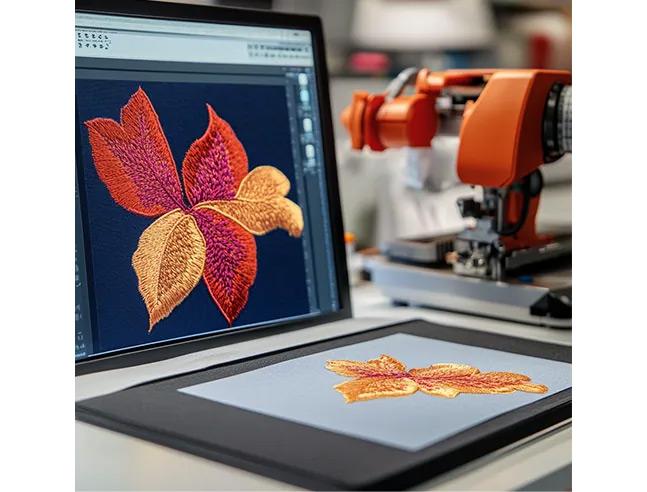
Introduction: You Really Don't Need to Buy Software for This
So you just got a Baby Lock embroidery machine, or maybe you have had one sitting in your craft room for a while. Either way, you have a bunch of embroidery files in different formats, and you just want to get them onto your machine and start stitching. Then someone tells you that you need expensive digitizing software just to convert or transfer files. Frustrating, right?
Here is the truth they don't tell you at the sewing machine store. You can Convert Embroidery Files for Babylock without spending a single dollar. No software purchase. No subscription. No credit card required. Between Baby Lock's own free tools, online converters, and some clever browser-based options, you have everything you need to move files from your computer to your machine.
Let me show you exactly how to do it.
Wait, Why Do Baby Lock Files Even Need Converting?
Before we jump into the how, let me quickly explain the why. Baby Lock machines primarily read two file formats. The most common is PES, which is actually a format developed by Brother (Baby Lock's parent company). Some newer Baby Lock models also read OTB, PHC, or PHX files. There is also DST, which is the industrial standard used by commercial machines.
The problem is that embroidery files come in dozens of different formats. Maybe you bought a design online that came as a DST file. Or a friend sent you a JEF or EXP file. Your Baby Lock machine might look at that file and refuse to read it. That does not mean the file is bad. It just means you need to convert it to a format your specific model understands.
And no, you do not need to pay for software to do that.
Free Tool #1: Baby Lock's Own Design Database Transfer (100% Official)
Let me start with the most obvious free tool, the one that actually comes from Baby Lock themselves. It is called Design Database Transfer, and it is completely free to download from the Baby Lock website .
Here is what this tool does for you. It lets you view embroidery designs on your computer, organize them into folders, and transfer them wirelessly to any Wireless LAN compatible Baby Lock machine. We are talking about machines like the Altair, Flare, Meridian, Solaris 2, Vesta, Array, and Venture .
The file formats it reads include PES, PHC, PHX, PEC, DST, EXP, PCS, HUS, VIP, SHV, JEF, SEW, CSD, XXX, and PEN. That is a huge list. So if you have a design in any of these formats, you can view it on your computer, see its stitch count, size, and color changes, and then send it straight to your machine.
Now, here is the honest catch. The Design Database Transfer tool does not convert between formats. It reads many formats, but it does not change a DST file into a PES file. For that, you need one of the other tools I am about to show you. But for wireless transfer and file management, this Baby Lock tool is a lifesaver.
One more thing. This software only works on Windows (8.1, 10, or 11). If you have a Mac, you need to run a Windows partition or parallel program. Baby Lock support will not help you with Mac issues, so keep that in mind .
Free Tool #2: Online Converters That Actually Work
If you just need to change one file format into another, online converters are your friend. No software to install. No accounts to create. Just upload, convert, and download.
The most useful free online converter for Baby Lock owners is one that turns PES files into OTB files. Some newer Baby Lock machines prefer OTB, and FreeFileConvert offers a free PES to OTB converter that works right in your browser .
Here is how it works. You upload your PES file from your computer, Dropbox, or Google Drive. You select OTB as the output format. You click convert. Then you download the converted file. That is it. You can process up to five files at once, each up to 1000 MB .
Another solid option is AnyConv. It supports batch processing and works on phones and tablets just as well as on computers. The company claims files are automatically deleted after conversion and never shared .
For converting between PES and DST, check out EZ Stitch's free browser-based converter. It runs entirely in your browser with no file upload required, which means your designs never leave your computer .
Quick warning about online converters. They work great for simple format conversion. But if someone tells you to use an online converter to turn a PNG or JPG into a PES file, run away. That is digitizing, not converting. And free online digitizing usually produces terrible results that will bird-nest your machine and ruin your fabric. More on that later.
Free Tool #3: SewFlow for Image to PES (Use with Caution)
There is a newer free online tool called SewFlow that claims to convert images and text into PES, DST, and JEF files. No signup required. It showed up on Product Hunt recently and has been getting some attention .
Here is my honest take. For very simple designs like a basic shape or a single letter, tools like SewFlow might work okay. They use auto-digitizing algorithms to guess where stitches should go.
But for anything with small text, multiple colors, or overlapping shapes, these free auto-digitizing tools usually create a mess. The stitches come out too dense, the fabric puckers, and you end up with thread tangles under the needle plate. That is called bird-nesting, and it is the fastest way to ruin an afternoon of sewing .
So by all means, experiment with free image-to-PES tools. But always sew a test run on scrap fabric first. And do not use them for gifts or customer projects.
What About Converting Without Any Computer at All?
Here is a trick that surprises a lot of people. Some newer Baby Lock machines with USB ports can read multiple file formats directly from a flash drive. You do not always need to convert at all.
Check your machine's manual. If it reads DST files, for example, you might be able to just drop that DST file onto a USB drive, plug it into your machine, and start stitching. No conversion software required.
The Design Database Transfer tool I mentioned earlier also supports wireless transfer. If your machine has Wireless LAN, you can send files directly from your computer to your machine without touching a USB drive .
The Honest Truth About "Free" File Conversion
Let me level with you. Free file conversion tools are amazing for changing one embroidery format into another. PES to DST? Easy. DST to PES? Also easy. PES to OTB? No problem.
But here is where people get into trouble. They search for "free convert image to PES" and find a website that promises magic. They upload a complex logo with small text and multiple colors. The website spits out a PES file. They load it into their Baby Lock machine. And then disaster strikes.
The machine tries to sew, but the thread tangles. The fabric bunches up. The needle breaks. This happens because free auto-digitizing tools do not understand pull compensation, underlay stitches, or proper density settings. They just throw stitches wherever they see dark pixels .
So remember this rule. Converting between embroidery formats is free and easy. Digitizing an image into an embroidery format is hard work that usually requires real software or professional help. Do not confuse the two.
Step by Step: Convert a DST File to PES for Free
Let me walk you through a real example. You bought a design online, but it came as a DST file. Your Baby Lock machine wants PES. Here is what you do.
First, open your browser and go to a free online converter like AnyConv or EZ Stitch .
Second, upload your DST file. Most converters let you drag and drop.
Third, select PES as your output format.
Fourth, click convert. Wait a few seconds.
Fifth, download your new PES file.
Sixth, transfer that PES file to your Baby Lock machine using a USB drive or the Design Database Transfer wireless tool.
That is it. No software installed. No money spent. Five minutes of work.
Common Baby Lock File Questions Answered
Do Baby Lock machines read PES files? Yes. PES is the standard format for Brother and Baby Lock home embroidery machines .
Can I convert a file on my phone? Yes. Most online converters work on mobile browsers. AnyConv works perfectly on phones and tablets .
Is it safe to upload my embroidery files to a free converter? Most reputable converters claim to delete files automatically after conversion. But if you are working with a proprietary or sensitive design, use a converter that runs entirely in your browser without uploading, like EZ Stitch .
What if my machine does not read the converted file? Make sure you selected the correct output format for your specific Baby Lock model. Some older machines may have format limitations.
Conclusion: Free Conversion Is Real, Just Know the Limits
You do not need to buy expensive software just to get embroidery files onto your Baby Lock machine. Between Baby Lock's own free Design Database Transfer tool and a handful of reliable online converters, you can handle most file conversion and transfer tasks without spending a dime.
Convert between PES, DST, OTB, and other embroidery formats all day long. That part is easy and free.
Just remember where to draw the line. Free online converters are great for changing one stitch file into another. They are not great for turning a photo or logo into a stitch file from scratch. For that, you want proper digitizing software or a professional service.
Now go grab that design you have been wanting to sew, convert it if you need to, and get stitching. Your Baby Lock machine does not care how much you paid for the conversion tool. It only cares that the stitches are right. And with these free tools, they will be.

 English
 French
 Spanish
 Portuguese
 Deutsch
 Turkish
 Dutch
Dutch
 Italiano
 Russian
 Romaian
 Portuguese (Brazil)
 Greek
Greek